
How to insert a signature in Word: add your signature as an image or a digital signature step by step in Microsoft Word and sign documents securely.
Are you still printing, signing, and scanning documents? There is a better way.
Handling documents digitally is now the norm, and signing them electronically is a natural part of that shift. Whether you're a business professional, legal expert, freelancer, or anyone who regularly deals with contracts and agreements, adding a digital signature in Microsoft Word can simplify your workflow. It’s a fast, secure, and legally recognized way to authenticate documents while keeping everything streamlined.
This guide covers everything you need to know about inserting a digital signature in Word, from understanding different types of electronic signatures to step-by-step instructions and best practices.
What Is a Digital Signature in Microsoft Word?
A digital signature is a secure way to confirm that a document is authentic and hasn’t been altered. It works like a handwritten signature but adds extra protection by using encryption to verify the document’s origin and integrity.
Difference Between Digital and Electronic Signatures
Many people use the terms digital signature and electronic signature interchangeably, but they are not the same. While both are used to sign documents electronically, they serve different purposes and offer different levels of security.
- Electronic Signature: A broad term for any digitalized signature, including scanned handwritten signatures, typed names, or click-to-sign options. While convenient, it lacks built-in security measures.
- Digital Signature: A more secure type of electronic signature that uses encryption and a certificate-based digital ID to verify the signer’s identity and protect document integrity.
Legality and Security Aspects
Digital signatures comply with regulations such as the eIDAS Regulation (EU), the ESIGN Act (US), and other international laws. They are legally binding when properly implemented and provide security features such as:
- Encryption: Ensures document integrity.
- Identity Verification: Authenticates the signer.
- Tamper Detection: Alerts users if the document has been altered after signing.
Why Use a Digital Signature in Word?
A digital signature in Microsoft Word helps keep documents secure, legally valid, and easy to manage.
- Enhanced Security and Authenticity – Digital signatures protect documents from unauthorized changes by locking them after signing. They also verify the signer’s identity using encryption and digital certificates, ensuring the document is genuine and has not been altered.
- Compliance with Legal and Business Regulations – Many industries require secure, verifiable signatures for contracts and official documents. Digital signatures meet these standards, making agreements legally binding and widely recognized across different jurisdictions.
- Convenience and Time-Saving – Traditional signing methods require printing, signing by hand, and scanning, which can be slow and inefficient. Digital signatures eliminate these steps, allowing documents to be signed instantly—even remotely—so agreements can be finalized faster.
How to Add a Digital Signature in Microsoft Word
There are several ways to insert a signature in Word. If you just want to add your own signature as an image, the image method below is enough. For a protected digital signature, use the built-in signature line (Method 1); for legally binding contracts, use an e-signature service (Method 2).
How to Insert a Signature as an Image in Word
The quickest way to insert a handwritten signature in Word is to add it as an image:
- Sign on a clean sheet of white paper and photograph or scan your signature.
- Crop the image and save it — ideally as a PNG with a transparent background.
- In Word, go to the Insert tab and choose Pictures to add your signature.
- Drag the image to the size you need and position it where the signature belongs.
- Select the image and save it via Insert → Quick Parts → Save Selection to Quick Part Gallery to reuse the signature in future documents with just a few clicks.
Method 1: Using the Built-in Signature Line Feature
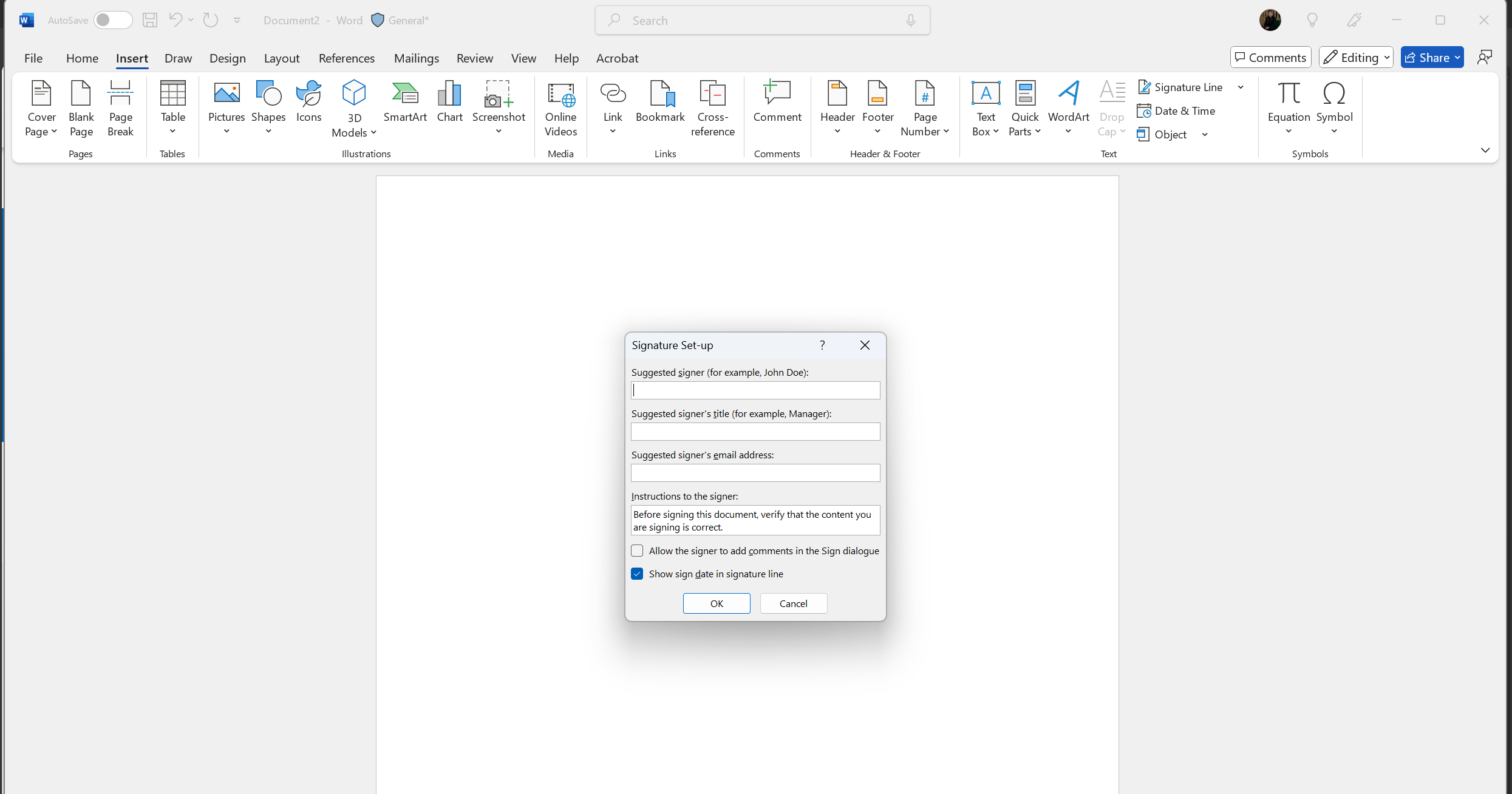
Microsoft Word includes a built-in feature that allows users to insert a signature line for digital signing.
Steps to Add a Digital Signature Line:
- Open your document in Microsoft Word.
- Click on the place where you want to insert the signature line.
- Go to the "Insert" tab.
- Click on "Text" and then select "Add a Signature Line" > "Microsoft Office Signature Line".
- A pop-up window will appear. Enter the signer's name and title (optional).
- Click OK to insert the signature line.
- When ready to sign, the signer can click on the line and:
- type their name,
- draw their signature using a stylus or touchscreen, or
- use a stored digital certificate to sign.
- Click "Sign" to complete the process.
Method 2: Using a Third-Party Digital Signature Provider
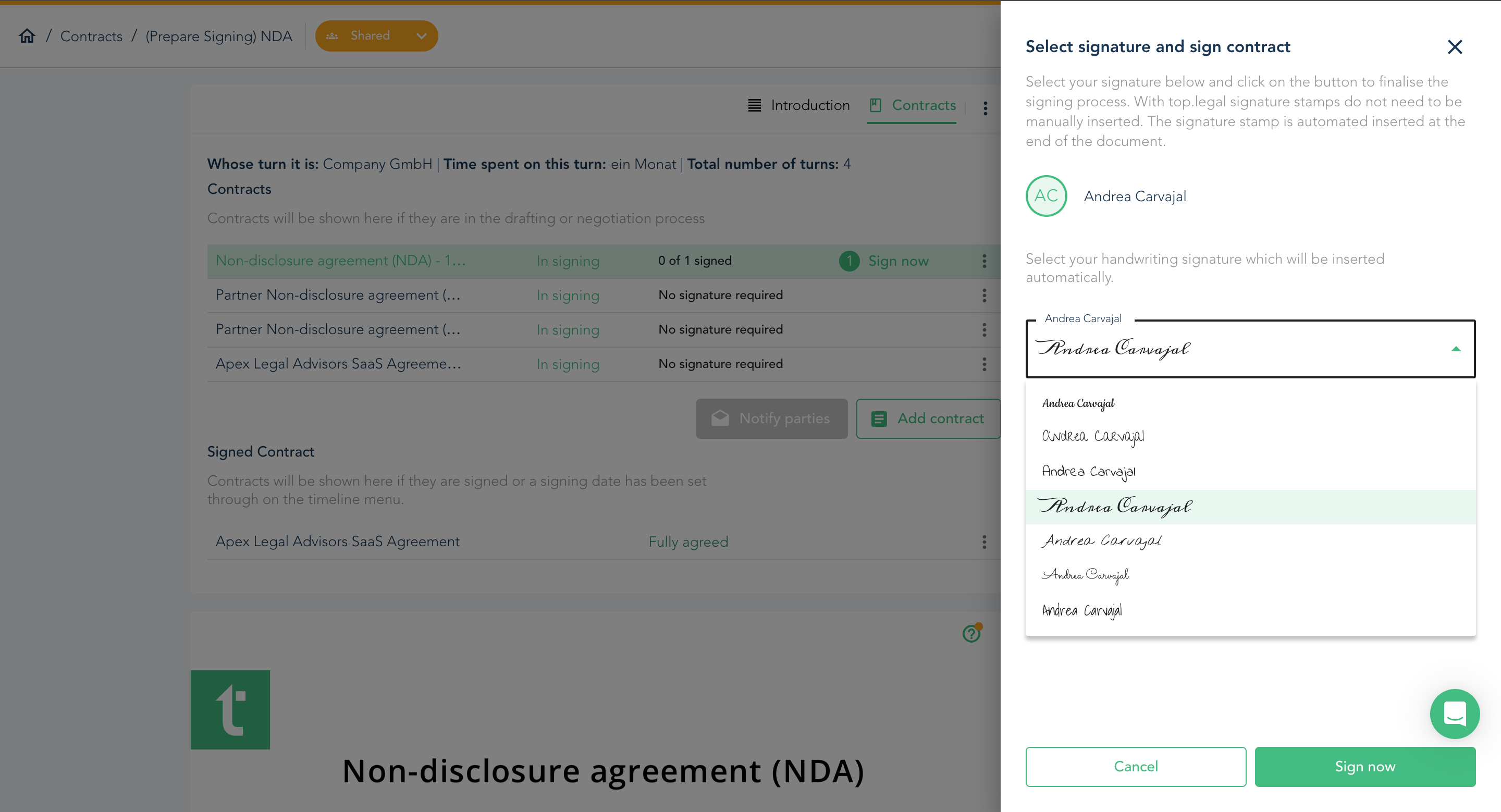
For more advanced digital signature capabilities, you can use third-party services like top.legal, which integrate seamlessly with Microsoft Word. These platforms offer enhanced security, legal compliance, and options for multiple signers, making document signing more efficient.
Why Word-native signatures fall short for legally binding contracts
Word's built-in signature feature is fine for internal sign-offs — but on a business-critical contract it quickly hits its limits:
- No tamper-proof audit trail: Word doesn't keep a court-ready record of who signed what, when, and in which order.
- No eIDAS conformity at QES level: It lacks the certified identity verification needed for an advanced (AES) or qualified electronic signature (QES).
- No multi-party workflows: You can't control signing order, reminders, or the status of multiple signers.
- Breaks on format changes: If the document is converted or edited after signing, the signature is invalidated.
These are symptoms of a bigger issue: Word was never built for contracts. If signing is where your process breaks, it may be time to look at dedicated alternatives to Word.
For legally binding contracts, a dedicated e-signature solution is the better fit: top.legal's electronic signature is eIDAS-compliant, provides a tamper-proof audit trail, and is built directly into your contract workflow — from drafting to an audit-proof close.
Steps to Sign Using a Third-Party Provider:
- Create or open a document in Word.
- Click on "File" > "Save As" and save the document in a format compatible with the signing service (e.g., PDF).
- Upload the document to top.legal or another digital signature platform.
- Follow the platform’s instructions to add your digital signature.
- Once signed, download the document and save it for future reference.
How to Create a Handwritten Digital Signature in Word
If you prefer a handwritten look, you can create a reusable digital signature using the following methods:
- Using a Touchscreen or Stylus: If you have a touchscreen device, you can sign directly in Word using the "Draw" tool. Simply select a pen option and use a stylus or your finger to create a natural-looking signature.
- Adding an Image of a Handwritten Signature: Another option is to sign on paper, scan it, and save the image as a PNG file for transparency. You can then insert this image into your document and resize it as needed.
- Creating a Reusable Signature Template: To save time, you can store your signature as a reusable template. Once you've inserted your handwritten signature into a document, save it as a "Quick Part" so you can easily add it to future documents with just a few clicks.
Each method allows you to maintain a personal touch while benefiting from the efficiency of digital document signing.
Best Practices for Secure Digital Signatures
- 1Obtain a certificateGet a trusted certificate from a recognised authority.
- 2Protect your digital IDKeep certificates and signing credentials private and secure.
- 3Keep the certificate currentCheck regularly and renew before the expiration date.
- 4Verify document integrityEnsure documents remain unchanged since signing.
↻ Ongoing cycle
To keep your digital signatures valid, legally binding, and protected from fraud, follow these best practices:
- Use a Trusted Digital Certificate – Always obtain your digital certificate from a recognized authority to ensure authenticity and compliance with security standards. This helps verify your identity and prevents forgery.
- Protect Your Digital ID – Treat your digital signature like a physical one. Keep your digital certificate and signing credentials private to prevent unauthorized use. Avoid sharing them or storing them in unsecured locations.
- Keep Your Certificate Up to Date – Digital certificates have expiration dates. Regularly check and renew yours to avoid disruptions when signing important documents. An expired certificate can make your signature invalid.
- Verify Document Integrity – Before sharing or signing a document, ensure it hasn’t been altered. A valid digital signature confirms that the document remains unchanged since signing, helping maintain trust and compliance.
Troubleshooting Common Issues
Even with the right setup, you may encounter issues when using digital signatures in Microsoft Word. Here’s how to fix the most common problems:
- Signature Not Appearing or Not Recognized
- Make sure you’re using a valid digital certificate from a trusted provider. Some certificates may need to be renewed or reinstalled.
- Check the document format—Word’s digital signature feature works best with .docx files, and some formats may not support signing.
- Errors with Digital Certificates
- If your certificate has expired, you’ll need to renew it through your provider before signing new documents.
- Ensure the certificate is correctly installed on your device and linked to your digital signature settings in Word.
- Compatibility Issues with Different Word Versions
- Some older versions of Word may not fully support digital signatures or may display errors.
- If possible, update Word to the latest version to ensure compatibility and access to the latest security features.
FAQs About Digital Signatures in Word
How do I insert a signature in Word?
The fastest way to insert a signature in Word is to add it as an image: scan your signature, save it as a PNG, then place it via Insert → Pictures. For a protected digital signature, use the built-in signature line (Insert → Text → Signature Line); for legally binding contracts, use an e-signature solution like top.legal.
How do I create a reusable signature in Word?
Insert your signature as an image once, select it, and save it via Insert → Quick Parts → Save Selection to Quick Part Gallery. You can then add the signature to any future document in a few clicks.
Can I sign directly in Word?
Yes. On a touchscreen device you can sign directly using the Draw tab with a stylus or your finger. Without a touchscreen, insert your signature as an image or use Word's signature line.
Can I use a digital signature in Word for legal documents?
Yes, digital signatures are legally valid as long as they comply with relevant regulations, such as eIDAS in the EU or the ESIGN Act in the U.S. Always check your local laws and industry standards for specific requirements.
How do I remove or edit a digital signature in Word?
Click on the signed area and select "Remove Signature". If the document is locked, you may need to request editing permissions or revert to an unsigned version. Keep in mind that removing a signature may invalidate the document’s authenticity.
Are electronic signatures the same as digital signatures?
Not exactly. Electronic signatures can be any digital representation of a signature, including scanned images or typed names. Digital signatures, on the other hand, use encryption and digital certificates to verify authenticity and ensure the document hasn’t been altered.
Ready for the next step?
Book a demo with our team and see top.legal in action