
How to build an Excel contract tracker: a step-by-step guide to the columns, formulas, and functions that matter — plus a free template to download.
Contracts get out of hand fast without the right system: deadlines slip, renewals roll over unnoticed, and important details disappear into document chaos. A contract tracker in Excel is the simplest way out of that mess — free, familiar, and set up in minutes.
This guide shows you step by step how to build a clear Excel contract tracker: which columns to include, which functions bring it to life, and how to maintain it. At the end you'll find a free template to download. Let's get started.
What is a contract tracker?
A contract tracker is a tool for recording all your contracts in one place and following their status. In its simplest form, that's a Microsoft Excel workbook with clearly defined columns for the key contract data — parties, term, deadlines, value, and status.
You can extend it as far as you like: drop-down lists for consistent entries, formulas for automatic calculations, and color coding for expiring contracts. Together, that adds up to a compact contract dashboard where nothing important slips through.
Why contract tracking matters
Contract tracking means keeping the term, costs, processing status, and deadlines of every contract in view. Doing it systematically lowers your error rate, ensures you never miss a notice or renewal date, and saves the time you'd otherwise spend hunting for the current version.
Not every company needs dedicated software right away — that depends on contract volume, team size, and maturity. But any company that wants to escape document chaos can take the first decisive step with a clean Excel spreadsheet. The reasons teams reach for Excel first are clear:
- Widespread and familiar: Excel is already installed and proven in almost every company.
- Simple and cheap: no extra licence fees, minimal training.
- Efficient when kept clean: a well-structured spreadsheet delivers a fast overview.
- Better than nothing: an Excel tracker beats having no system at all.
For a full weighing of when Excel is enough and where its limits lie, see our guide to Excel in contract management.
How to build an Excel contract tracker, step by step
Start by setting up a dedicated worksheet used only for contract tracking. Each row represents one contract, each column one data field.
1. Define the right columns
Limit yourself to the fields that clearly describe the contract and that you'll actually monitor. These have proven their worth:
- Contract partner – the parties involved
- Contract type – e.g. purchase, service, lease
- Term – start and end dates
- Expiration and renewal date – for deadline tracking
- Status – e.g. "signed", "under review", "signature missing"
- Contract value – the financial volume
- Responsible person – internal ownership
- Reference number – for unambiguous identification
Keep the table deliberately lean: with every additional contract and column, the tracker gets harder to read. A few consistently maintained fields are worth more than an overloaded sheet.
2. Set up useful functions
A static sheet is only the start. These Excel functions turn it into a real tracking tool:
- Drop-down lists: define fixed options for fields like status. This saves typing and prevents inconsistent entries.
- Formulas: functions such as
SUMandAVERAGEsummarize contract values and quickly surface metrics on volume or completion rate. - Conditional formatting: color cells automatically by content — for example red for expired contracts, yellow for those expiring soon. Critical deadlines then stand out at a glance.
- Reminders: with formulas or add-ons, you can set up alerts for approaching deadlines so no renewal or termination slips by.
3. Keep data clean and consistent
- Format consistently: matching font sizes, date formats, and column widths keep the sheet readable.
- Drop-downs over free text: use fixed lists wherever possible to prevent typos and duplicates.
- Clear naming: give contracts and linked files distinct, descriptive names.
- Update regularly: add new contracts immediately, mark or archive expired ones. A fixed maintenance rhythm keeps the tracker from going stale.
Free Excel template for contract tracking
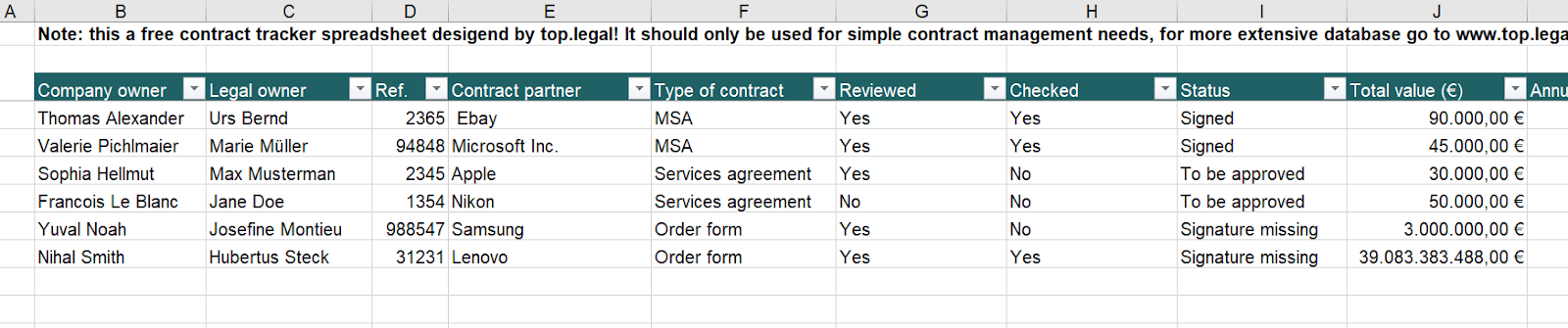
You don't have to build the tracker from scratch. Our legal engineering team has created a free Excel template that already includes the key columns and a three-level status column ("Signed", "To be approved", "Signature missing"). Request the template through the form above and adapt it to your needs.
Where Excel hits its limits as a contract tracker
Excel is a good starting point — but it was never built for contract management. As your contract volume grows, the weaknesses show clearly:
- Prone to errors: a wrong value or an overwritten formula often goes unnoticed for a long time. For business-critical contracts, that's risky.
- Hard to keep clear: what works for a few contracts quickly becomes confusing at a few dozen.
- Dependence on individuals: usually only one person maintains the sheet. If they're out or someone overwrites data by accident, the whole process suffers.
- No integrations: Excel has no electronic signature and doesn't connect to other systems — extra tools and workarounds are the result.
- Security risks: spreadsheets are easy to copy, email, or view without authorization. There is no fine-grained access control.
For a full comparison of the pros and cons, read the pillar guide Excel in contract management.
The better long-term solution: contract management software
Once Excel hits its limits, contract management software takes over the tracking automatically — no manual upkeep. Four advantages stand out over the Excel tracker:
- Central, searchable contract repository: every contract sits securely in one place and is found in seconds — instead of scattered across folders and spreadsheets. More on this in our guide to creating a contract database.
- Version control: every change is logged — who made it, when, and why. Several people work at once, without a flood of "final_FINAL" versions.
- Automatic reminders: you record deadlines once, and the software alerts you in good time and pulls the right people into the workflow.
- Reporting and analytics: metrics like financial obligations or expiration dates can be evaluated in a click, audit-proof and with a full trail.
Frequently asked questions about the Excel contract tracker
How do I create a contract tracker in Excel?
Set up a dedicated worksheet where each row represents one contract. Define columns for contract partner, contract type, term, expiration and renewal date, status, and value. Add drop-down lists, formulas, and conditional formatting to standardize entries and make deadlines visible.
Which columns belong in an Excel contract tracker?
The key fields are contract partner, contract type, term, expiration and renewal date, status, contract value, responsible person, and reference number. Limit yourself to the fields you'll actually monitor so the table stays readable.
Is there a free Excel template for contract tracking?
Yes. Our legal engineering team provides a free Excel template that already includes the key columns and a status logic. You can request it through the form in this article.
When should I switch from an Excel tracker to software?
As a rule of thumb: at around 20–30 active contracts, once several people collaborate on contracts, or when deadlines and renewals come up regularly. For a deeper look at the alternative, see our guide to contract management software.
Ready for the next step?
Book a demo with our team and see top.legal in action